Price Channel EA MT4
MetaTrader Expert Advisor
The Price Channel EA for MT4 is a professional MetaTrader 4 expert advisor engineered for versatile trend and range trading. This robust system automatically identifies dynamic price channels, precisely mapping support and resistance levels. It executes trades when price action tests and bounces from these critical channel boundaries, capitalizing on market reversals. To ensure disciplined risk management, the EA includes built-in protective features such as customizable stop-loss and take-profit levels, dynamic trailing stops, and flexible lot sizing options. By automating these technical setups, the Price Channel EA helps traders maintain consistency, reduce emotional interference, and optimize execution across various market conditions.
Alternative download link Added to cart — redirecting to checkout in 3 seconds...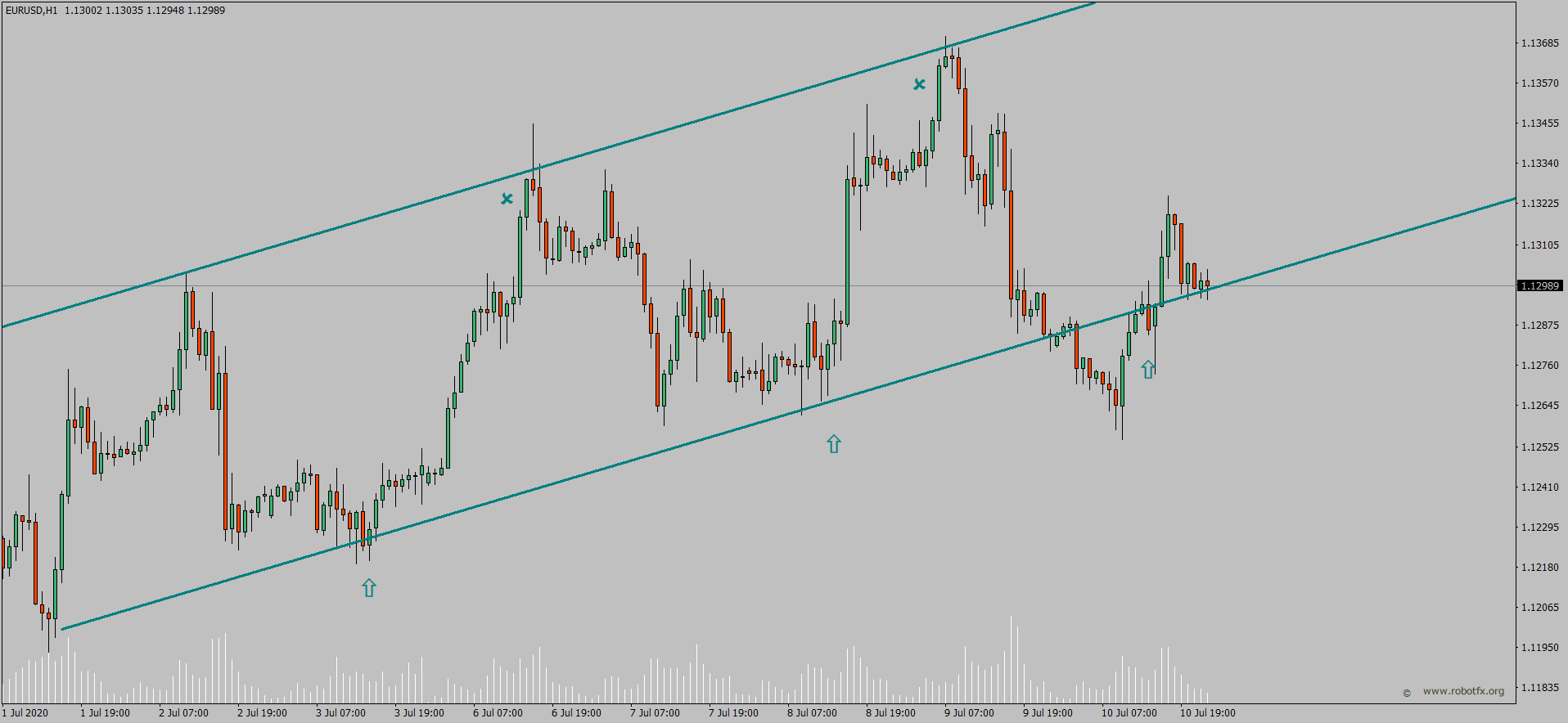
Key Features of the Price Channel EA for MT4
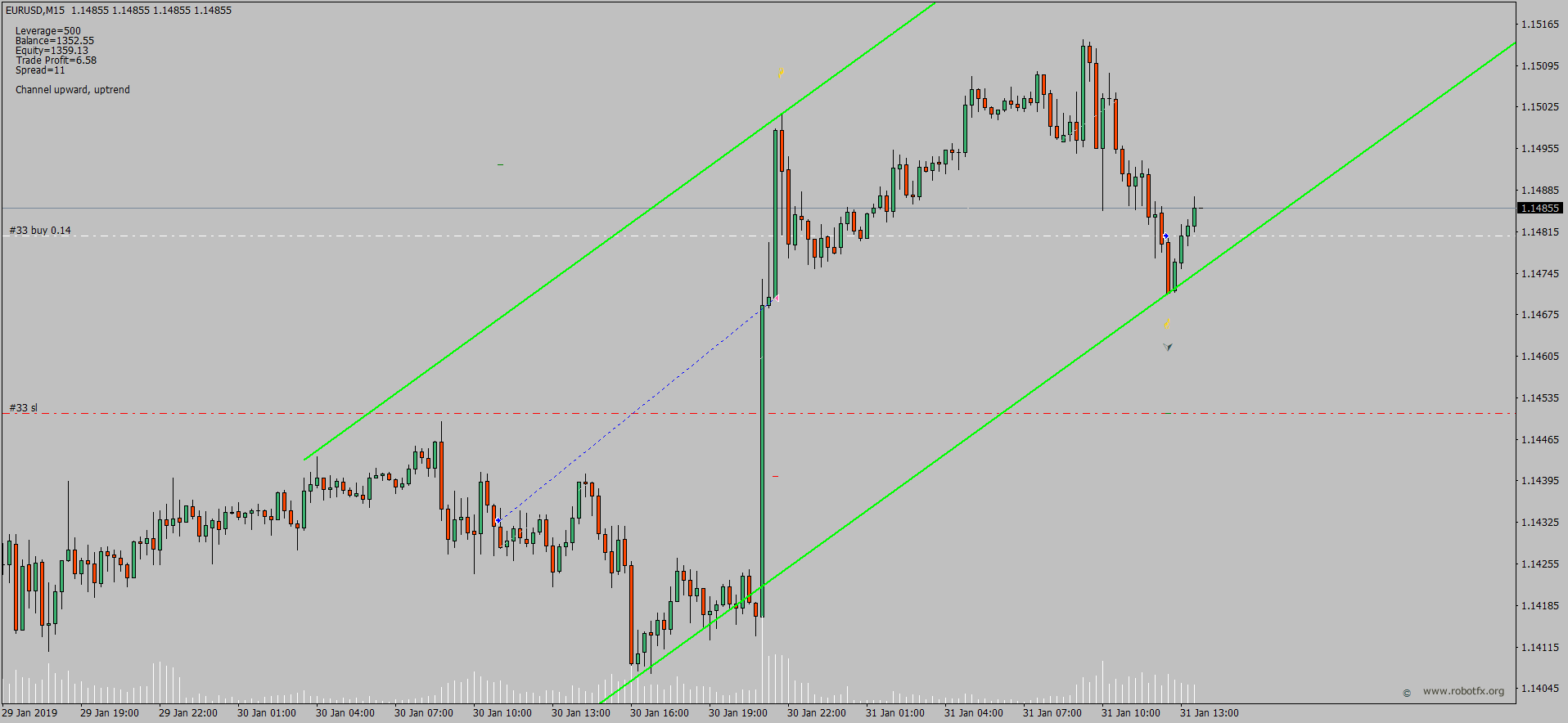
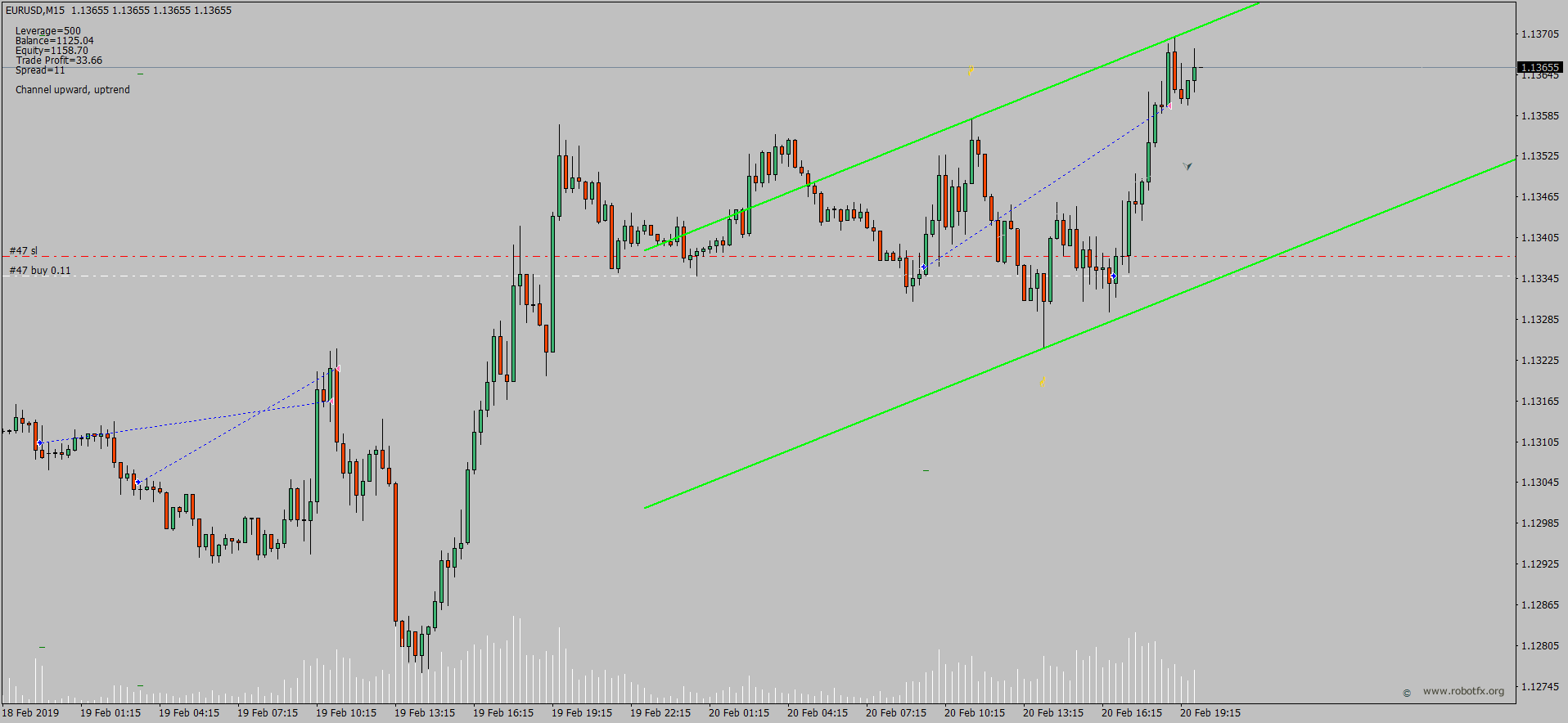
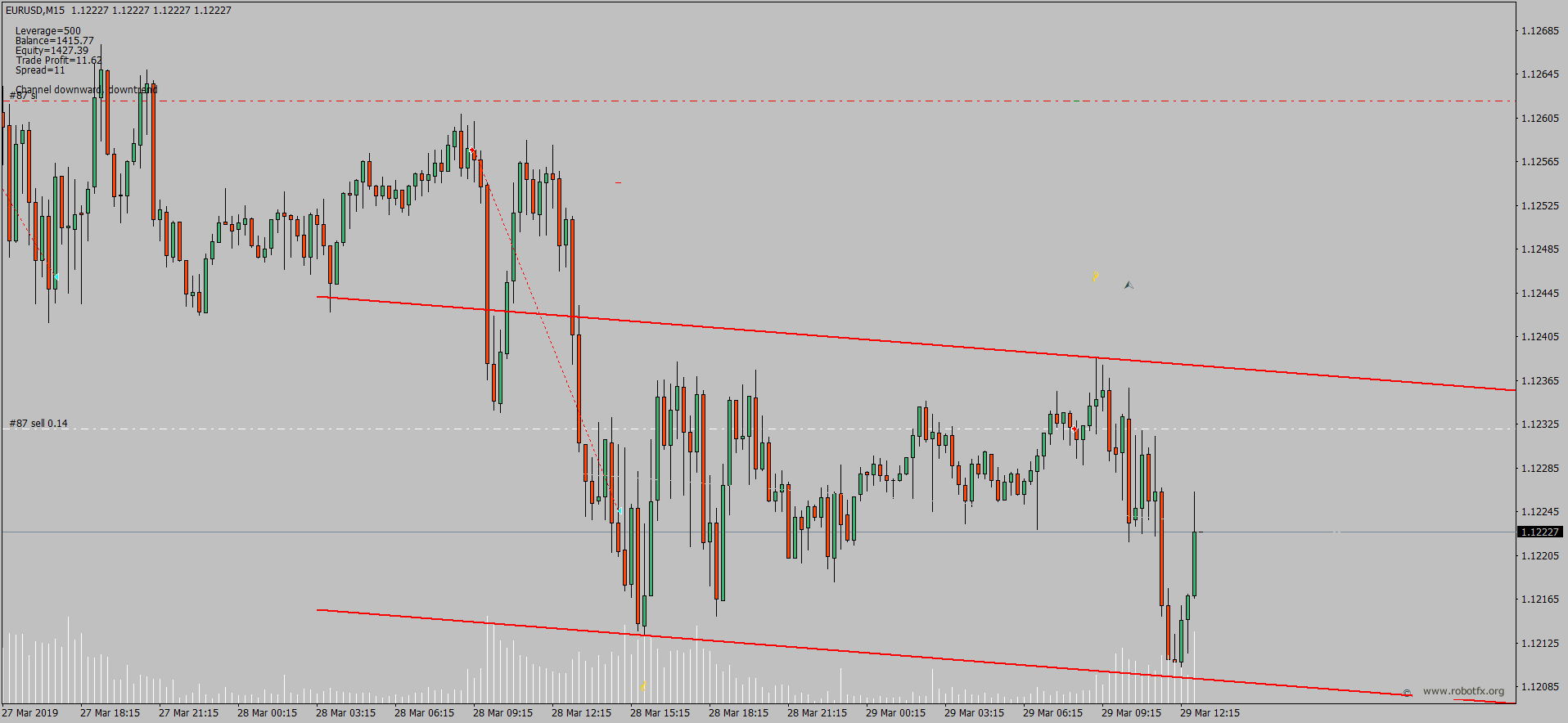
The Price Channel pattern consists of two parallel trend lines acting as dynamic support and resistance. The Price Channel EA for MT4 automatically detects these channels and trades bounces from the boundaries while respecting the overall market trend.
This Channel Trading Expert Advisor is ideal for traders who want to capitalize on price movement within well-defined channels. It combines channel trading with a built-in trend filter to avoid counter-trend trades, resulting in higher probability setups.
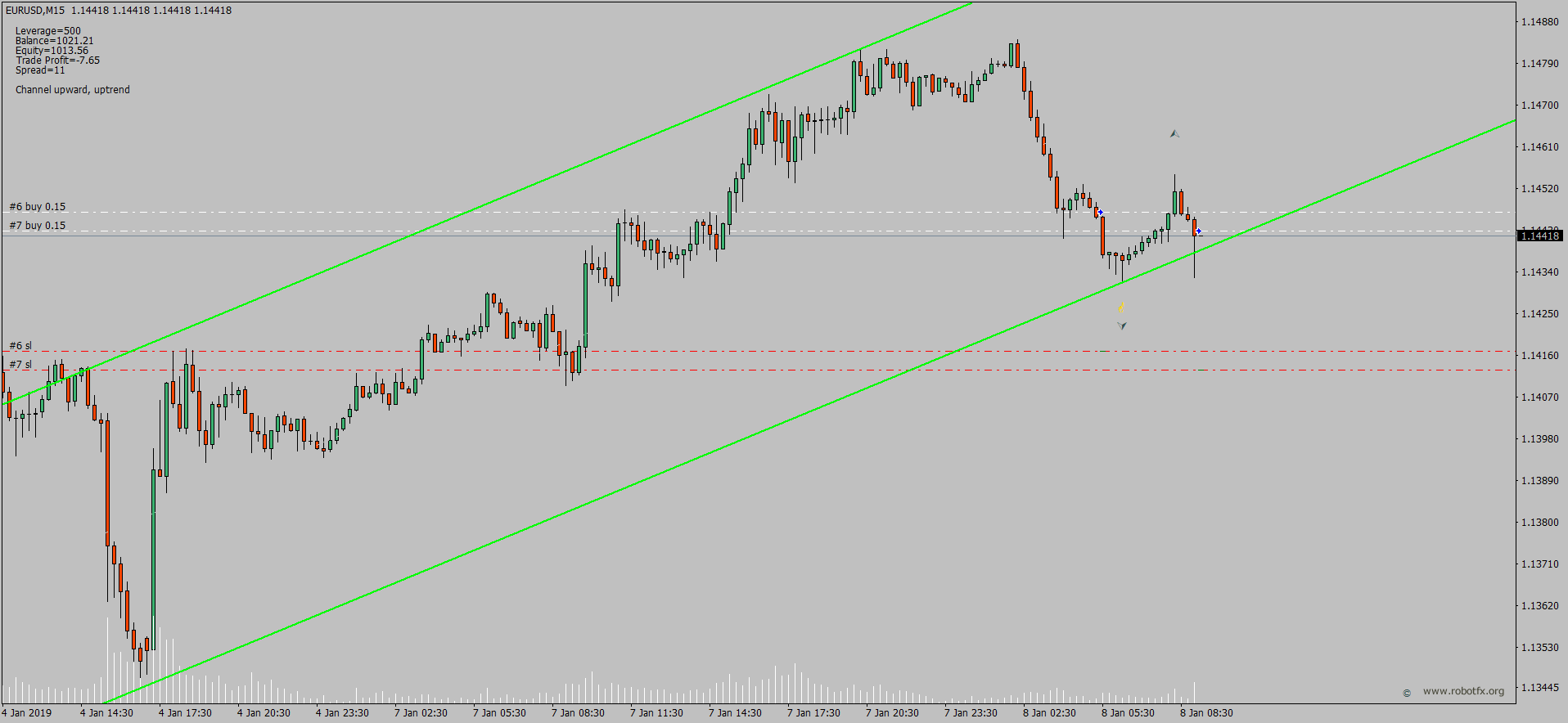
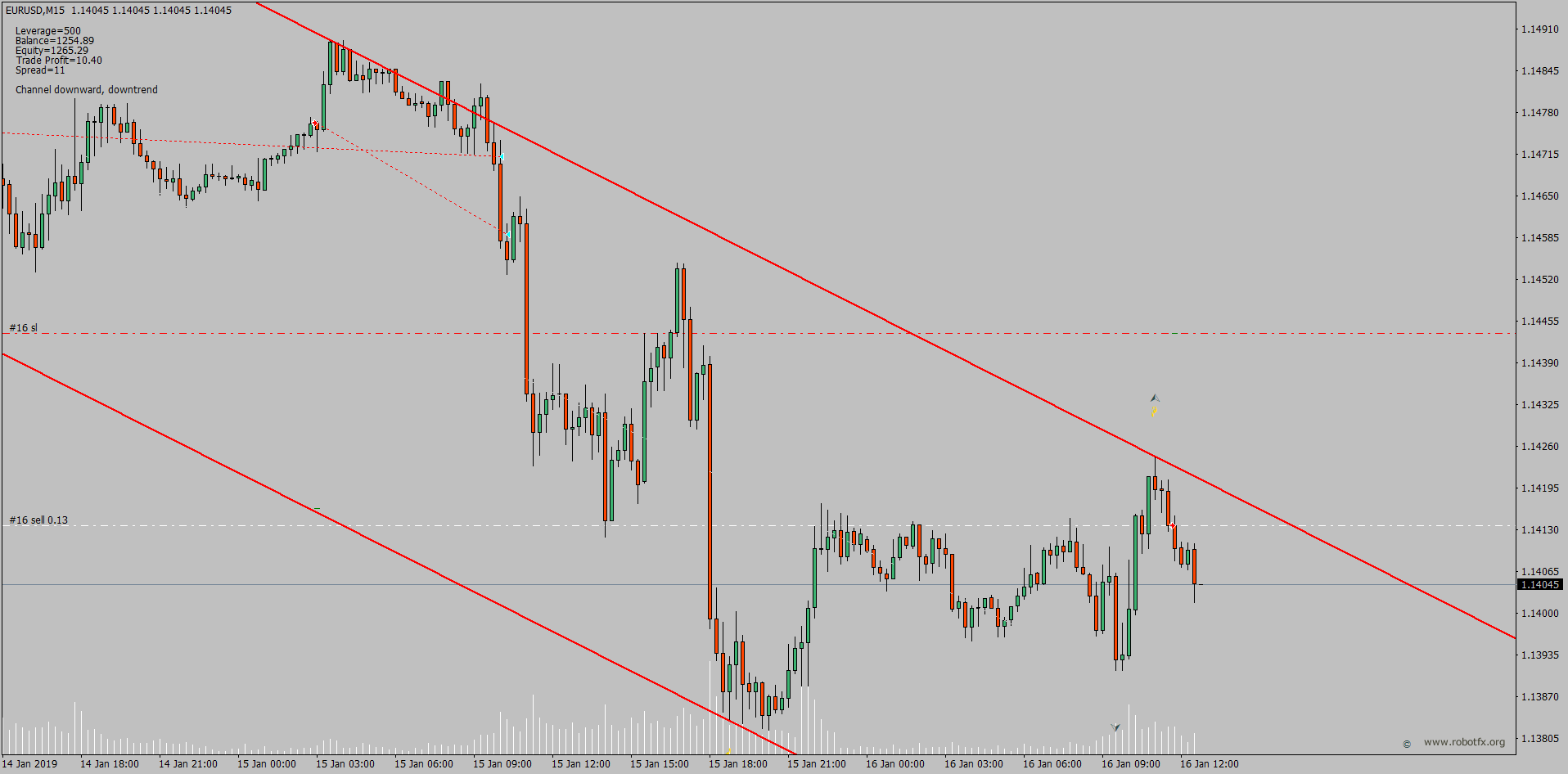
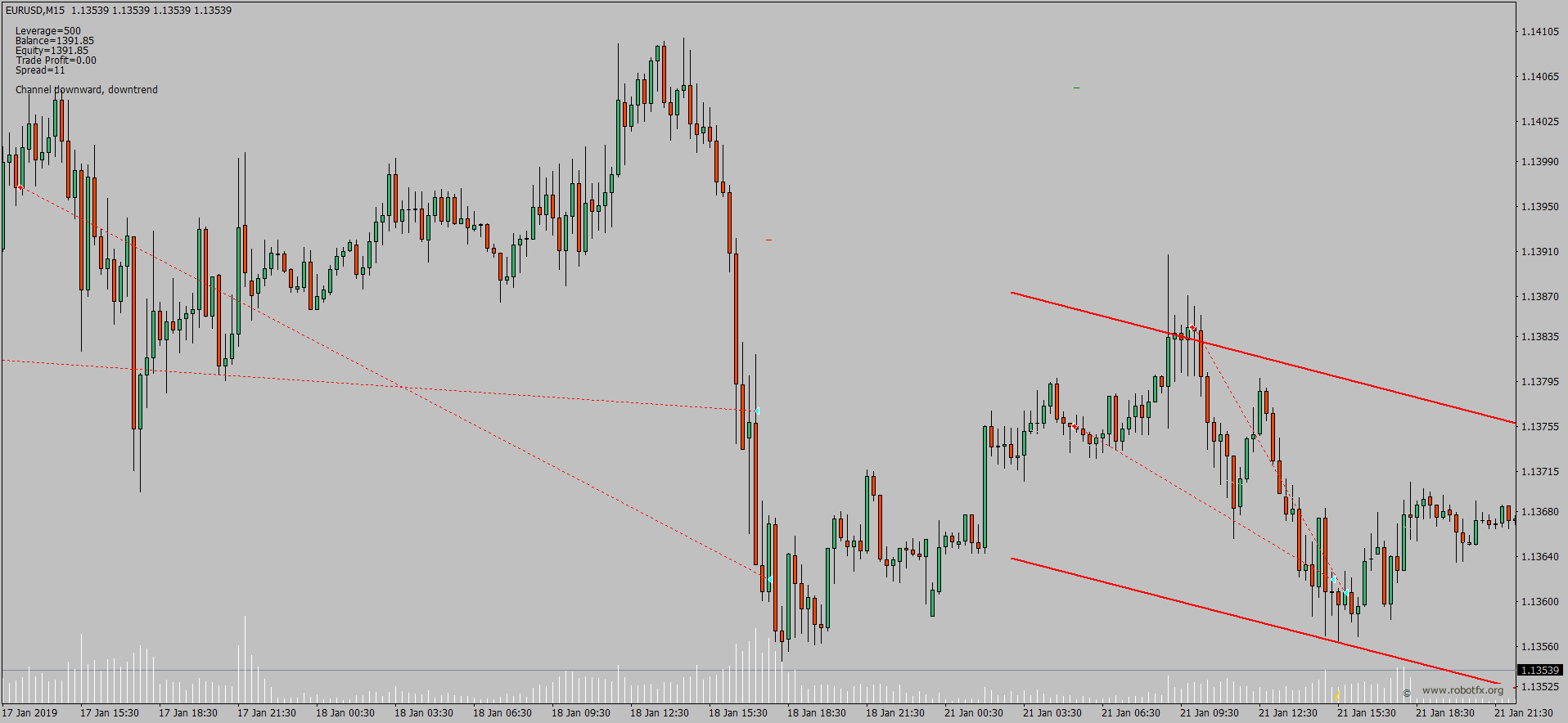
Price Channel EA Trend Trading Examples
Configuring Price Channel EA Settings
- Enter your Client Email - fill this with your email IF you are using a paid version of this EA on a LIVE account
- Sunday to Friday - Indicate whether or not you want to trade each specific day
- NFP Friday - Whether or not you want to trade on volatile Non-Farm payroll Friday, first Friday of the month
- Thursday Before NFP - Whether or not you want to trade on the Thursday before the volatile Non-Farm Payroll Friday
- Christmas Holidays - Whether or not you want to trade during a custom defined period in December, during the low liquidity of the Christmas Holidays
- Christmas Holidays Start (20th Dec) - This is the day in December you will start to filter out, as the beginning of the Christmas Holiday. Default is 20th, you can enter any date instead of 20
- New Years Holidays - Whether or not you want to trade during a custom defined period in the beginning of January, the low liquidity of the New Years Holidays
- New Years Holidays End (5th Jan) - This is the day in January you stop the filter, the end of the New Years holiday period. Default is 5th January, you can enter any date instead of 5
- Auto GMT Offset - Indicate if you want auto GMT offset turned on or off. Turn off during back testing
- Manual GMT Offset - If AutoGMTOffset is turned off, indicate what your manual GMT offset would be
- Enable Trading Session - Set to false to ignore the below trading sessions, or to true to trade within the sessions
- Trade Tokio Session - Whether or not to trade Asian session
- Start Tokio Session - Do not trade before this time. If you include Australia, Sydney starts at 21.00, and Tokyo starts at 23.00 GMT
- Finish Tokio Session - Do not trade after this time. Defaulted at 07.00, the start of the European Session. Note: The Tokyo session continues on for 1 more hour to end at 08.00, so if you are interested in trading this session in its entirety, you should indicate from 23:00 to 08.00
- Trade London Session - Whether or not to trade European session
- Start London Session - Do not trade before this time. Defaulted at 7.00 GMT, the start of the London Session, though Germany does not open till 08.00
- Finish London Session - Do not trade after this time. Note: The European Session continues till 16.00, so if you are interested in trading this session in entirety, you should have your defaults from 7.00 to 16.00
- Trade New York Session - Whether or not to trade the New York session
- Start New York Session - Do not Trade before this time. Note that the NY stock exchange does not open till 9:30 EST, or 13.30 GMT, and the first hour and half (from 9:30 to 11:00 EST, or 13:30 to 15:00 GMT) is heavy trading, lots of liquidity
- Finish New York Session - Do not Trade after this time
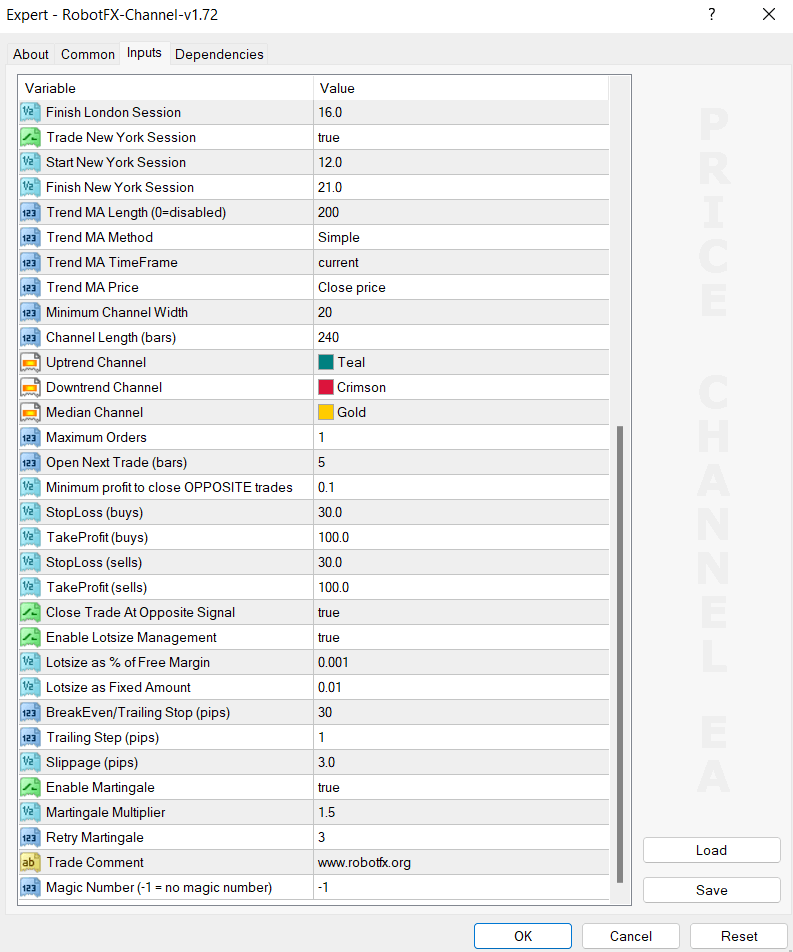
- Trend MA Length (0=disabled) - the moving average trend length; if set to 0, the trend detector is ignored
By default, the Channel EA opens long trades only when the channel is upwards (rising), and short trades if the channel is downwards (falling). For an improved way to trend with the trend, the EA can also be restricted to trade following the trend given by this moving average. If the MA on the previous two candles is rising, there is an uptrend; it the MA is falling, it is a downtrend.
- Trend MA Method - determine the moving average method (simple, exponential ...)
- Trend MA Price - determine the moving average price (close, high, median, typical ...)
- Minimum Channel Width - the minimum width of the channel to allow trades to be opened
- Channel Length (bars) - the channel length in candlesticks
- Uptrend, Downtrend, Median Channel - set the channel's color to match the chart's template
- Maximum Orders - maximum number of trades allowed to be opened at the same time
- Open Next Trade (bars) - if more than one trades allowed to be opened, the next trade will open only if the trade signal is at least this number of candles away from the last opened trade
- Minimum profit to close OPPOSITE trades - if there are opposite trades on the chart (buys & sells), the expert will start closing them all when their profits reaches this amount
The minimum profit above can be used as a breakeven to close baskets of trades, and it is useful to traders that do not feel comfortable with having baskets of opposite trades on the chart. For this option to be disabled, a very high amount can be entered as Minimum profit. This also accepts negative values, so the trades are closed when their profit reaches a certain loss or higher.
- StopLoss (buys) - the stop-loss for the long trades
- TakeProfit (buys) - the take-profit for the long trades
- StopLoss (sells) - the stop-loss for the short trades
- TakeProfit (sells) - the take-profit for the short trades
- Close Trade At Opposite Signal - if there is a trade opened and then a signal for an opposite trade, the EA will close the opened trade
- Enable Lotsize Management - if set to true, the trades lot size will be a percentage of the free margin
- Lotsize as % of Free Margin - the percentage of free margin used as lot size when opening trades, if the Lotsize Management is enabled
- Lotsize as Fixed Amount - the lotsize, if the Lotsize Management is set to false
- BreakEven/Trailing Stop (pips) - sets the stop-loss at the price is this number of pips away from the trade opening price, in favor of the trader
- Trailing Step (pips) - if the price continues in favor of the trader, the stop-loss moves with the price every time this moves with at least this number of pips
- Slippage (pips) - this is the number of pips the price is allowed to move from the trader's (the EA) command until the broker's server executes the trade
- Enable Martingale - whether or not to use martingale (increase the lot size of a trade if the previous closed at loss)
- Martingale Multiplier - if the martingale is set to true, the expert advisor will multiply the previous (losing trade) with this number in order to determine the next lot size
- Trade Comment - can be used to faster identify trades opened by this EA
- Magic Number (-1 = no magic number) - if planning to trade manually or using others expert advisors on the same instrument, a unique number must be entered; this number is needed for the EA to identify its own trades
How to Use Price Channel EA MT4
- Download and install the Price Channel EA from the MetaTrader 4 Expert Advisors section.
- Attach the EA to any major forex pair chart (EURUSD, GBPUSD, etc.) inside MetaTrader 4.
- Configure channel length, minimum channel width, and trend filter settings to match your strategy.
- Set your risk parameters: lot size, stop loss, take profit, and trailing stop.
- Enable or disable martingale and session filters depending on your trading style.
- The EA will automatically detect price channels and trade bounces in the direction of the trend.
Frequently Asked Questions
Q: Is the Price Channel EA only for MT4?
Yes, this expert advisor is built specifically for MetaTrader 4.
Q: How does the EA determine the trend?
It uses a built-in Moving Average trend filter in addition to the direction of the price channel.
Q: What is the minimum channel width setting for?
It prevents the EA from trading in very narrow channels where there is not enough room for profitable trades.
Q: Can I use this EA for scalping or long-term trading?
It works best on H1 to H4 timeframes for swing and intraday channel trading.
Q: Does it support martingale?
Yes, you can enable the martingale feature to increase lot size after losing trades. You may also check our dedicated RSI Martingale Expert Advisor.
RobotFX Price Channel EA Video Tutorial
In this video, you will learn what price channels are in technical analysis, how to identify high-quality channels on MetaTrader 4, and how to trade them profitably using the Price Channel Expert Advisor. It covers trend confirmation techniques, support and resistance strategies, optimal stop loss and take profit placement, and best settings for consistent results. You will have to watch the rest of the videos too if you want to master this trading tool.