MACD Multi-Timeframe Panel MT4
MetaTrader Indicator
The MACD Multi TimeFrame Panel indicator is an advanced technical layout engineered for traders who rely on MACD-based trend strategies to navigate the markets. By consolidating data from multiple chart intervals into one clean, compact on-screen dashboard, this indicator removes the need to constantly flip between different timeframes. It gives you a clear view of both structural trends and immediate momentum shifts at a single glance, keeping your primary execution chart clean and completely free of clutter.
Alternative download link Added to cart — redirecting to checkout in 3 seconds...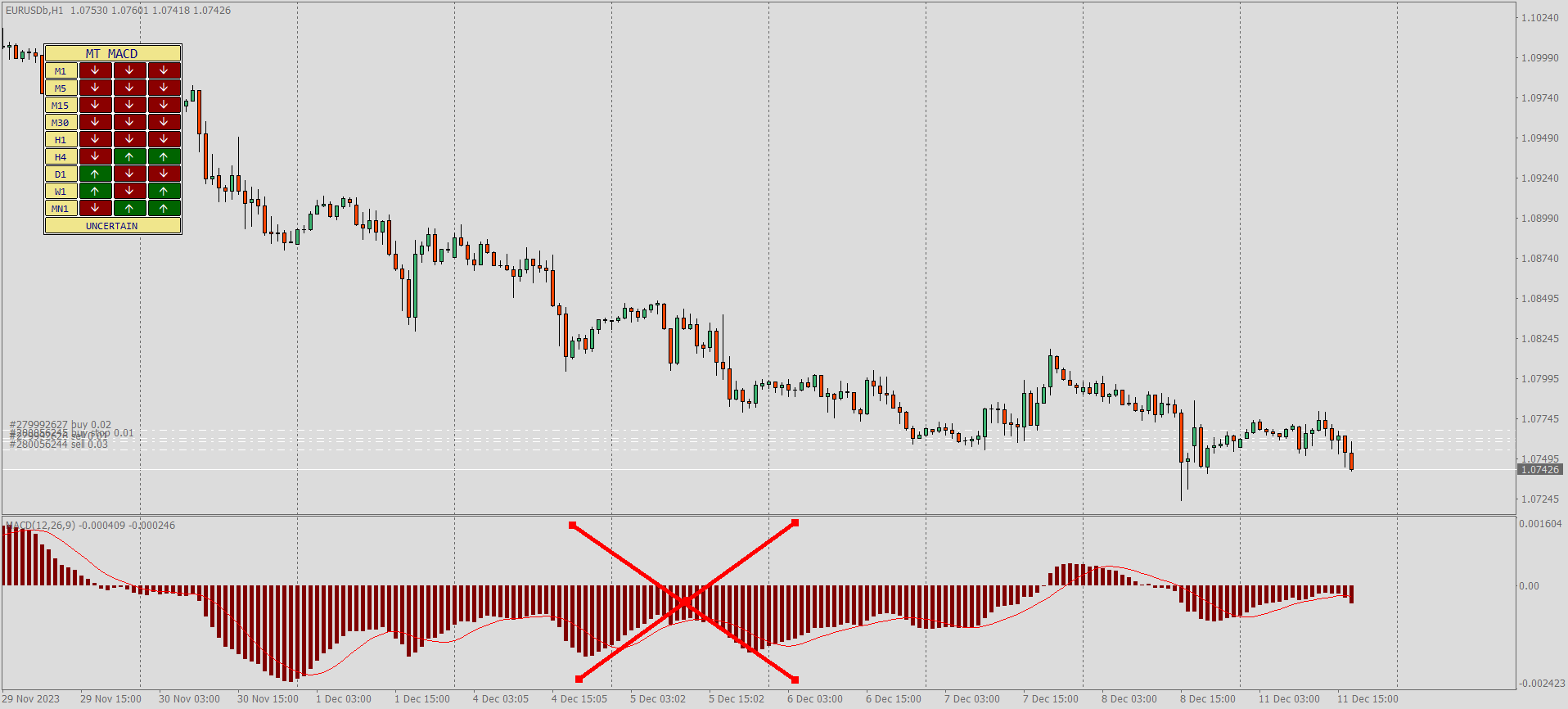
Key Features of the MACD Multi-Timeframe Panel Indicator for MT4
The MACD (Moving Average Convergence Divergence) MTF panel displays trend momentum across different timeframes directly on the chart, removing the need for a separate MACD window and improving chart clarity.
MACD Multi-Timeframe Panel Indicator Trade Examples
The indicator is designed to:
- Display MACD signals from multiple timeframes in a compact panel
- Eliminate the need for the standard MACD sub-window
- Help traders quickly identify trend direction and momentum shifts
This tool is especially useful for MACD trend traders who rely on momentum confirmation across multiple timeframes before entering or exiting trades.
Configuring MACD Multi-Timeframe Panel Indicator Settings
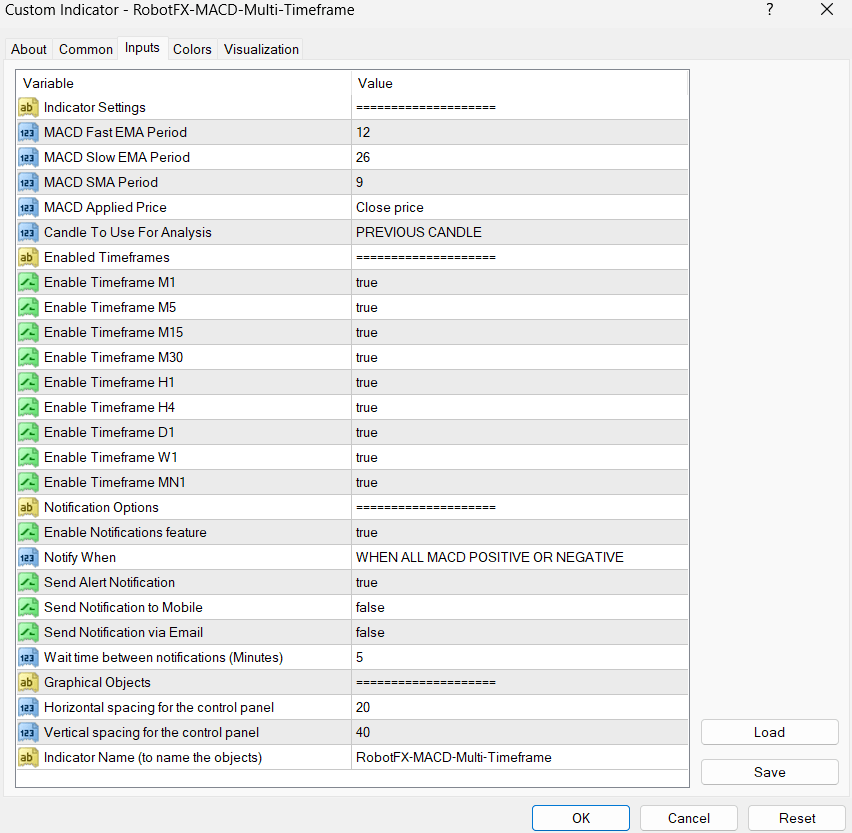
The settings allow full customization of MACD behavior, multi-timeframe display, alerts, and panel positioning for better chart usability.
- MACD parameters: Customize fast, slow, and signal periods
- Timeframes: Select which timeframes to display in the panel
- Alerts: Enable notifications when MACD signals change
- Panel position: Adjust panel placement to avoid chart overlap
MACD Multi-Timeframe Panel FAQ
What is the MACD Multi-Timeframe Panel?
It is an MT4 indicator that shows MACD signals from multiple timeframes in a
single panel on the chart.
Is it good for trend trading?
Yes, it is designed specifically for MACD-based trend and momentum strategies.
Does it replace the standard MACD indicator?
Yes, it removes the need for a separate MACD sub-window by displaying signals
directly on the chart.
How to use MACD Multi-Timeframe Panel in MT4
- Install the indicator file into your MetaTrader 4 Indicators folder.
- Restart MT4 or refresh the Navigator panel.
- Attach the indicator to any chart.
- Select timeframes and MACD settings in the inputs menu.
- Use the panel signals to confirm trend direction before trading.
RobotFX Suggested Video
The video will explain how the RobotFX Auto Recovery works and the strategy behind the loss recovery. Feel free to watch the rest of the videos too.