Renko EA for MT4
MetaTrader Expert Advisor
The Renko EA for MT4 is a complete professional solution for traders who want to harness the power of Renko charting to refine their technical analysis. This robust package includes two powerful MetaTrader 4 expert advisors working in tandem to streamline your workflow: the Renko Chart EA, which builds accurate, custom Renko charts in real time, and the Renko Trader EA, which automatically executes precise trades based on specific Renko brick patterns. By focusing strictly on price movement and ignoring time-based fluctuations, these tools help traders filter out erratic market noise, identify clear, sustained trends, and execute strategies with significantly improved accuracy and confidence for a more disciplined trading experience.
Alternative download link Added to cart — redirecting to checkout in 3 seconds...
Key Features of the Renko EA for MT4
- Creates custom offline Renko charts with flexible brick sizes (M2, M3, M4 and more) beyond standard MetaTrader timeframes
- Continuously updates Renko charts in real-time, allowing both manual and automated trading
- Trades Renko brick color changes with built-in PSAR trend filter for high-probability entries
- Provides advanced trade management including stop-loss, take-profit, break-even, trailing stop, and optional martingale
The Renko Chart EA solves one of MetaTrader 4’s biggest limitations — the lack of native Renko charts. It generates clean, noise-free Renko bricks that make trend identification much easier compared to traditional candlestick charts. The Renko Trader EA then takes full advantage of these charts by opening and managing trades automatically based on brick direction and trend confirmation.
This combination makes the Renko EA package one of the most effective tools for trend-following traders who want to avoid false signals caused by market noise.
/Renko EA Brick Chart Trading Examples
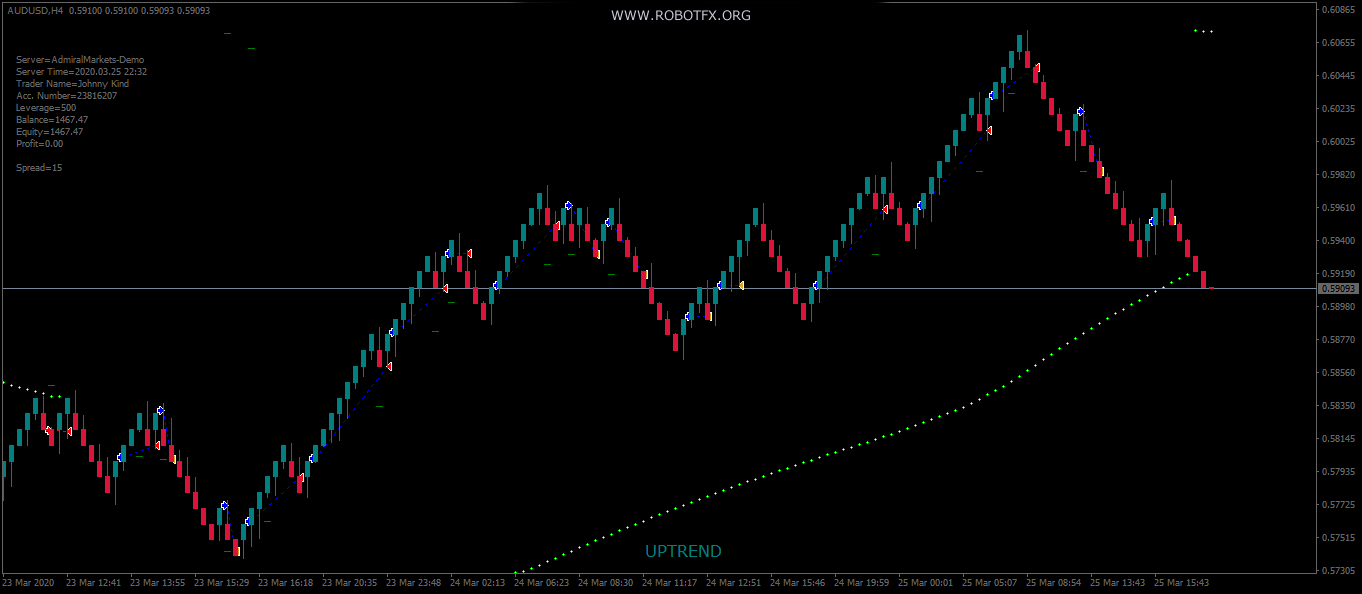
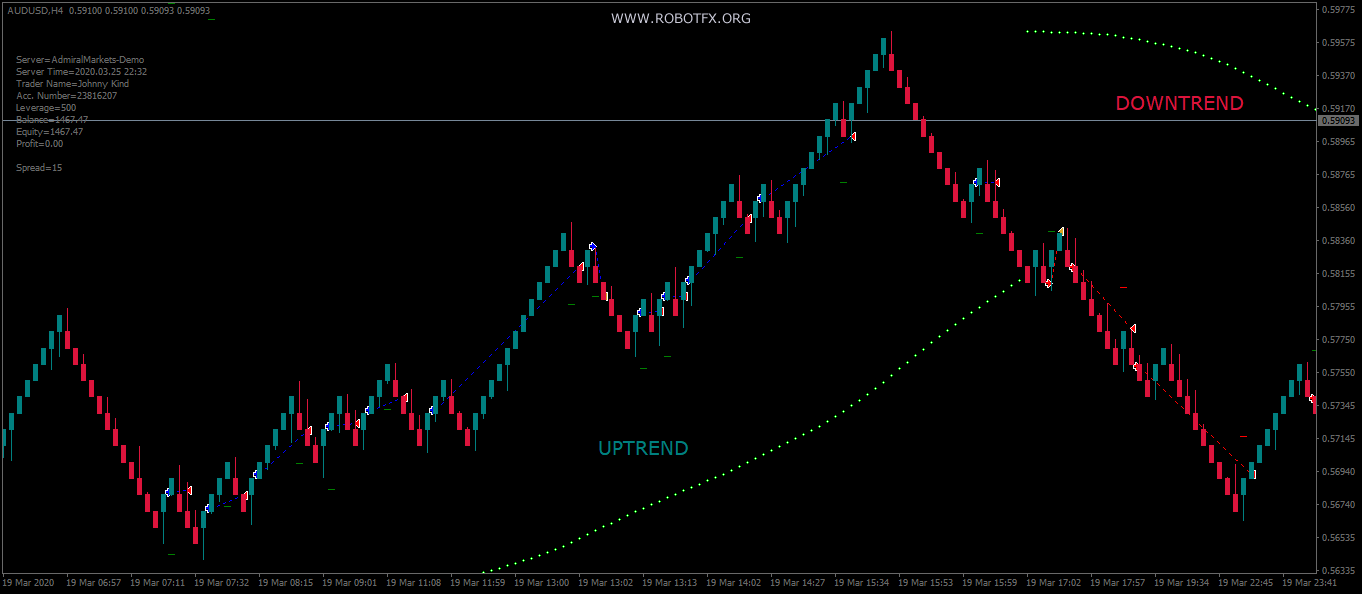
The screenshots above show Renko charts generated by RobotFX Renko Chart EA on the AUDUSD pair. On these Renko charts, the Renko Trader EA was attached and executed trades automatically. The strategy follows the market trend, using the PSAR indicator as confirmation for entries and exits.
Configuring Renko EA Settings
Renko Chart EA
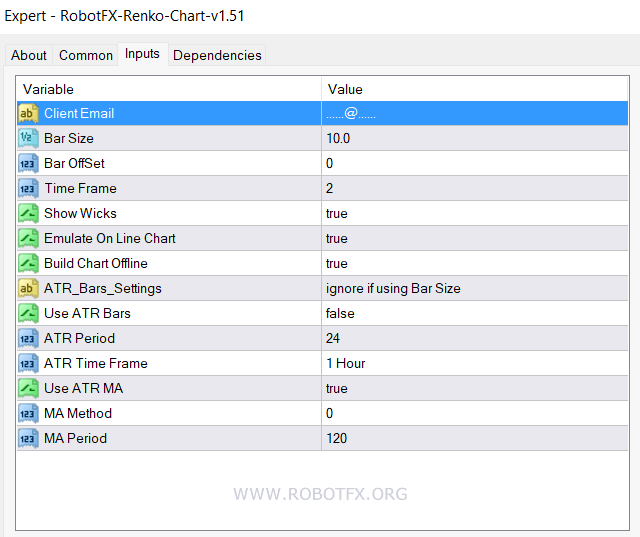
- Client Email - fill this with your email IF you are using a paid version of this EA on a LIVE account
- Bar Size - this is the number of pips that the renko bars will have, basically their length
- Bar Offset - set in pips, may be configured as a positive or negative value and will move the following bricks up or down, respectively
- Time Frame - the name of the renko chart (2 will create the renko chart named M2, 3 M3 and so on)
- Show Wicks - whether or not to show the wicks (spikes) on the renko bars
- Emulate On Line Chart - makes possible to change to line chart, on the renko chart
- Build Chart Offline - makes possible to generate the renko chart while offline
- ATR Bars Settings - these are self explanatory and, if Use ATR Bars is set to true, the expert advisor will generate the renko bars based on the ATR (average true range) settings of your choice and - if set to true - its moving average. Mind that, if these are enabled, the EA will ignore the fixed Bar Size value in pips
Renko Trader EA
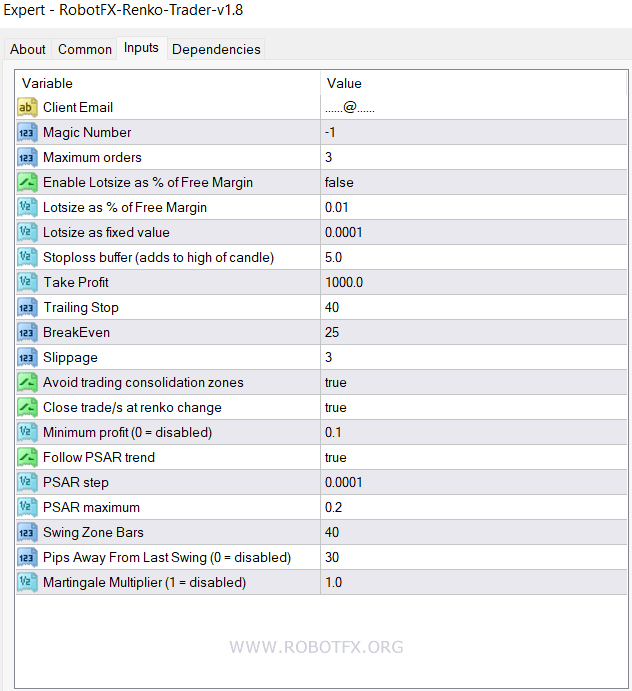
- Magic Number - assign a unique number to trades opened by this EA so they can be managed by other EAs or allow this EA to manage trades opened by other EAs.
- Enable Lot Size as % of Free Margin - Whether or not to use a percentage of the Free Margin to open the next first trade, improving adaptive risk control in volatile markets.
- Lotsize as % of Free Margin - the size of the first opened trade as percentage of Free Margin, if the Lot Size Management (above) is enabled.
- LotSize as Fixed Value - the size of the first opened trade, if the Lot Size Management is set to false.
- Stoploss Buffer (adds to high/low of brick) - enhances Renko structure protection by extending stop-loss beyond previous brick levels.
- Take Profit (pips) - fixed profit target used in structured Renko breakout strategies.
- Trailing Stop (pips) - dynamic profit protection mechanism used in advanced trailing stop systems.
- BreakEven (pips) - moves stop-loss to entry after defined profit, reducing risk exposure to zero.
- Slippage (pips) - execution tolerance for fast-moving Renko breakout conditions.
- Avoid trading consolidation zones - filters sideways price structures to improve breakout accuracy.
- Close trade/s at renko change - closes trades on brick reversal for aggressive trend-following exits.
- Minimum profit (0 = disabled) - ensures only profitable exits on reversal conditions.
- Follow PSAR trend - confirms direction using Parabolic SAR logic aligned with Renko trading strategy.
- PSAR step, maximum - controls sensitivity of trend filtering logic.
- Swing Zone Bars - defines swing structure for breakout validation.
- Pips Away From Last Swing (0 = disabled) - improves breakout quality by avoiding premature entries.
- Martingale Multiplier - increases lot size after losses using recovery-based risk scaling.
Do not close the chart where the Renko Expert Advisor is attached, as it continuously generates Renko bricks based on live market movement.
After initialization, open File → Open Offline and select the generated Renko chart (e.g. M2). Ensure AutoTrading is enabled for proper execution.
Use only non-standard timeframes for Renko charts (avoid 1, 5, 15, 30, 60 etc.).
How to Use Renko EA MT4
- Install both the Renko Chart EA and the Renko Trader EA on your MetaTrader 4 terminal.
- Attach the Renko Chart EA to an M1 chart of your chosen currency pair and configure the desired brick size (in pips or ATR-based).
- Allow the EA to build the offline Renko chart (usually named M2, M3, etc.).
- Open the generated Renko chart via File → Open Offline in MetaTrader 4.
- Attach the Renko Trader EA to this Renko chart and adjust your trading parameters such as lot size, stop loss, take profit, trailing stop, and PSAR settings.
- Enable AutoTrading and let the EA automatically detect trends and trade Renko brick formations.
Frequently Asked Questions
Q: Is the Renko EA only for MT4?
Yes, this package is developed exclusively for MetaTrader 4.
Q: Why should I use Renko charts instead of regular candlesticks?
Renko charts filter out minor price fluctuations and market noise, making trends
and reversals much clearer and easier to trade.
Q: Do I need both the Renko Chart EA and Renko Trader EA?
Yes. The Chart EA generates the Renko bricks, while the Trader EA executes the
automated trading strategy on those charts.
Q: Can I customize the Renko brick size?
Absolutely. You can set any fixed pip size or use the built-in ATR method for
dynamic brick sizing based on market volatility.
Q: Does the Renko Trader EA follow the trend?
Yes, it includes a powerful PSAR trend filter so it only takes trades in the
direction of the prevailing trend, significantly improving win rate.
Q: Is this suitable for beginners?
Yes. Renko charts are visually simple, and the EA automates most of the process.
We recommend testing thoroughly on a demo account first.
RobotFX Renko EA Video Tutorial
In this video, you will learn everything about trading with Renko charts in MetaTrader 4. We explain what Renko bricks are, why they are superior for filtering noise, how to generate custom Renko charts using the Renko Chart EA, and how the Renko Trader EA automatically executes profitable trades based on brick patterns and trend confirmation with PSAR. You will have to watch the rest of the videos too if you want to master this trading tool.