StairSteps EA for MT4
MetaTrader Expert Advisor
The StairSteps EA for MetaTrader 4 is a sophisticated breakout expert advisor designed to identify and trade consolidation zones (CZ). By automatically detecting these areas where price ranges indecisively, the EA executes trades as the price breaks out with significant momentum. To maximize precision, the system employs a comprehensive, multi-layered filtering architecture, including Moving Average and ATR indicators for trend validation and volatility adjustment. It also incorporates precise time-session management and a high-impact news filter to prevent trading during volatile market events. By combining these aggressive breakout strategies with advanced risk management—such as customizable stop-loss, take-profit, breakeven, and trailing stop features—the StairSteps EA provides a stable, automated solution to improve trade quality and effectively reduce false signals.
Alternative download link Added to cart — redirecting to checkout in 3 seconds...
Key Features of the StairSteps EA for MT4
- Automatically detects and draws consolidation zones on the chart
- Trades breakout moves when price exits the consolidation zone
- Uses Moving Average and ATR filters for higher probability entries
- Includes flexible risk management with stop-loss, take-profit, breakeven, trailing stop, and optional martingale
- Offers powerful session, day, and news filters to avoid risky periods
The RobotFX StairSteps Expert Advisor is a professional MetaTrader 4 breakout EA specifically designed to trade consolidation zone breakouts. Consolidation zones form when price moves sideways in a range before breaking out with strong momentum. The EA identifies these "stair-like" zones and places trades in the direction of the breakout while aligning with the overall trend. Traders looking for a dedicated MT5 solution may also be interested in the Consolidation Zone Expert Advisor MT5.
This expert advisor is ideal for traders who want to capture explosive moves after periods of market indecision. It can be configured for pure breakout trading or range trading inside the consolidation zone, giving you excellent flexibility. For additional trend confirmation, many traders combine breakout systems with tools such as the Trend Dashboard Indicator MT5 or the Support Resistance 3 Lines Indicator MT4.
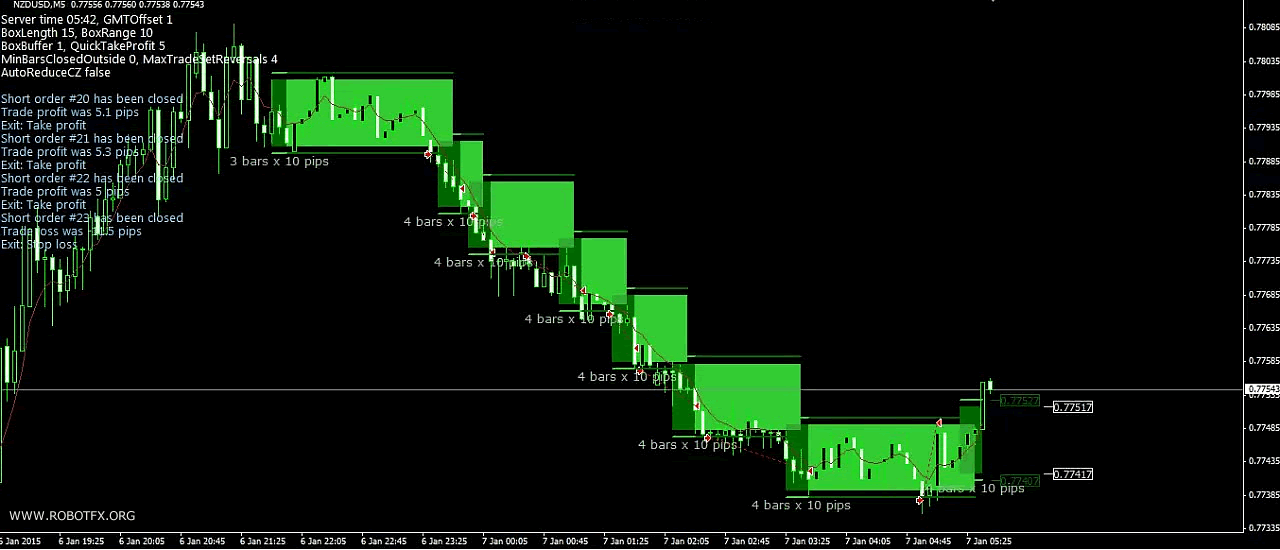
Below are multiple real chart examples showing how the StairSteps EA detects consolidation zones and executes breakout trades across different currency pairs.
StairSteps EA Breakouts Trading Examples
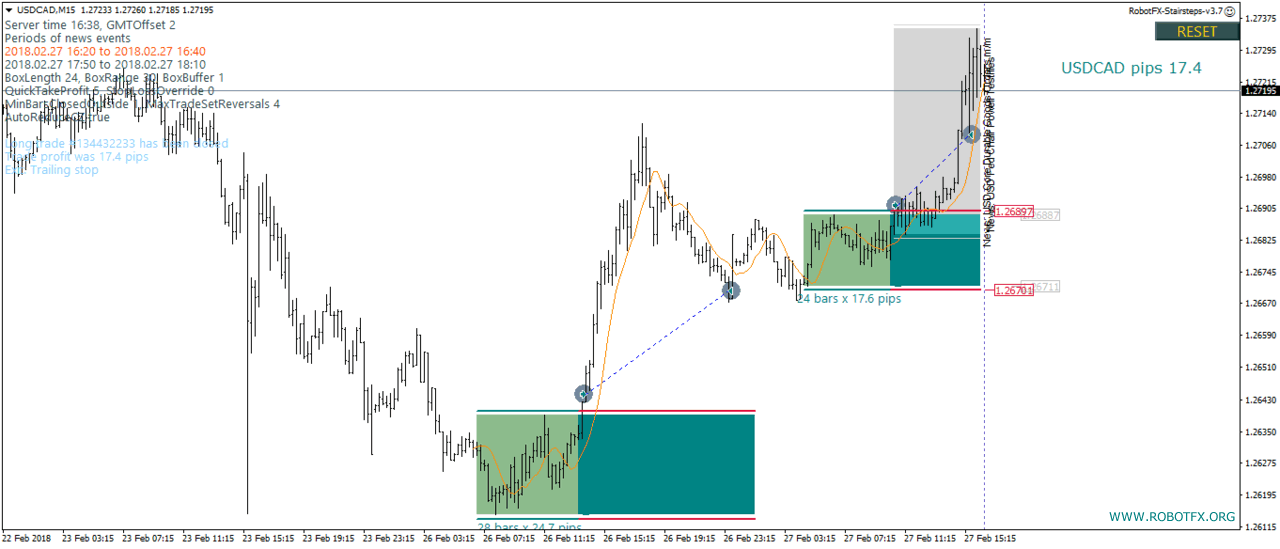
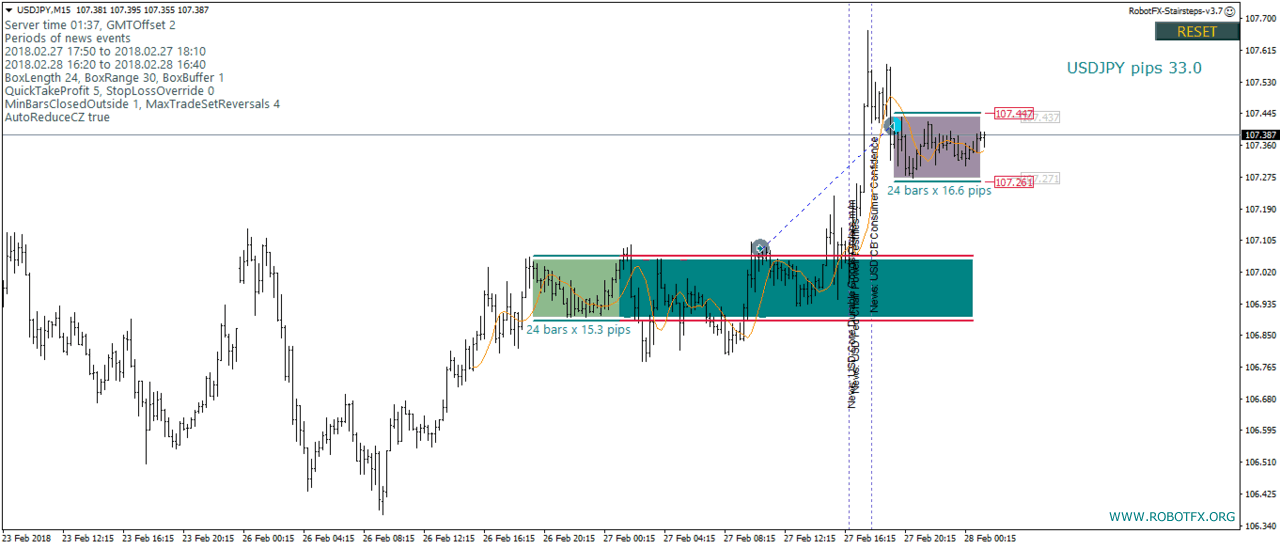
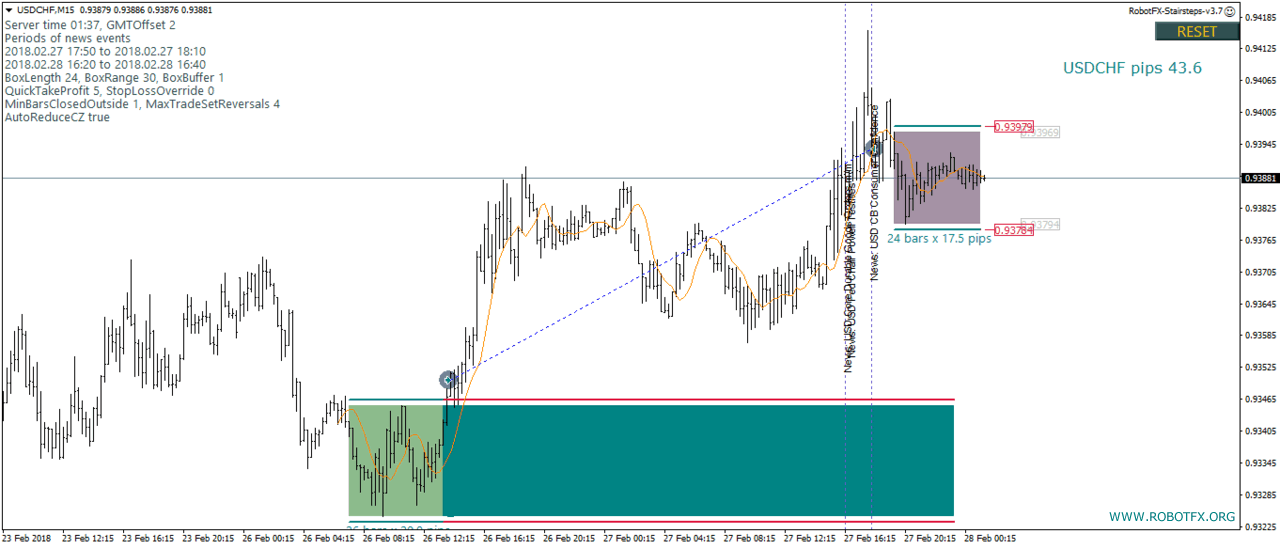
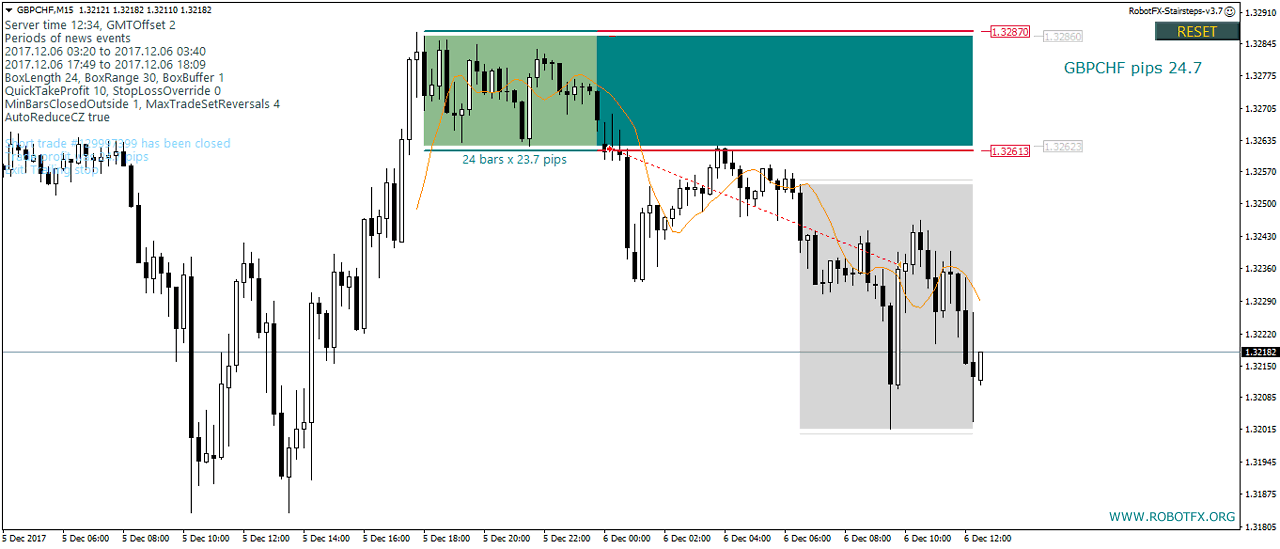
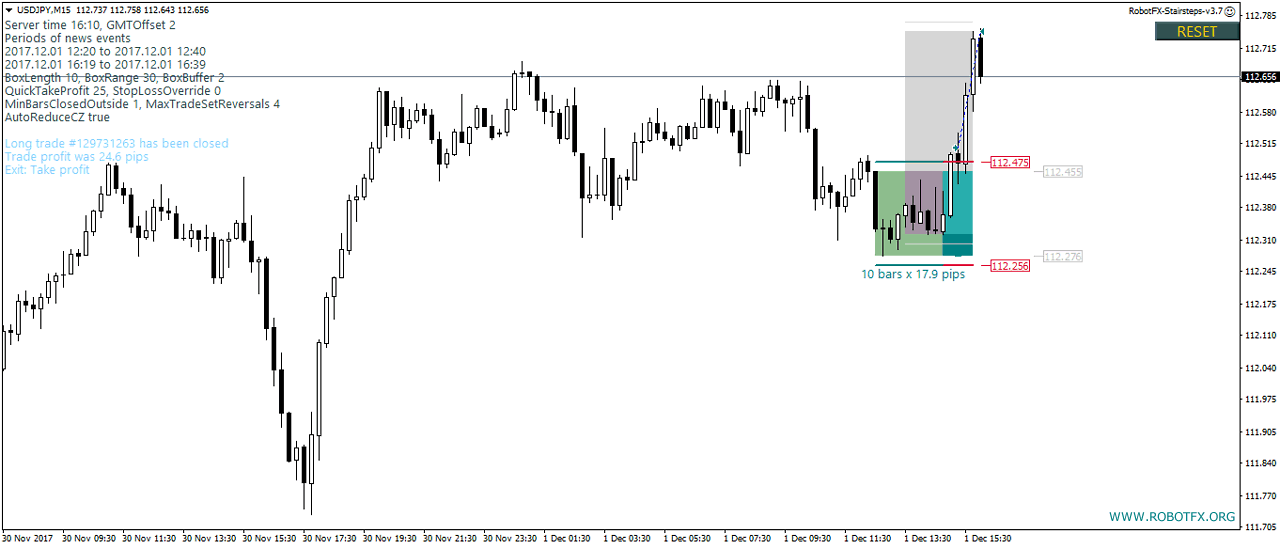
Although the EA trades breakouts in the examples above, it can also be configured to trade within a consolidation zone—opening a buy order at the bottom of the CZ and a sell order at the top. This flexibility allows traders to adapt the RobotFX Stairsteps Expert Advisor to both breakout and range-bound strategies in MetaTrader. Traders who focus on identifying key price boundaries may also benefit from tools such as the Support Resistance Indicator MT4 or the Regression Channel Indicator MT4 when analyzing consolidation areas.
Configuring StairSteps EA Settings
- BoxBuffer: Margin above and below a consolidation zone, beyond which an entry is triggered.
- BoxBufferType: Type of BoxBuffer: multiplier of ATR, multiplier of CZ height or multiplier of stop loss value. Traders who use ATR-based volatility analysis may find the ATR Trend Channel Indicator MT5 useful for understanding market expansion and contraction.
- BoxLength: Minimum number of bars for a valid consolidation zone.
- BoxRange: Minimum height for a valid consolidation zone.
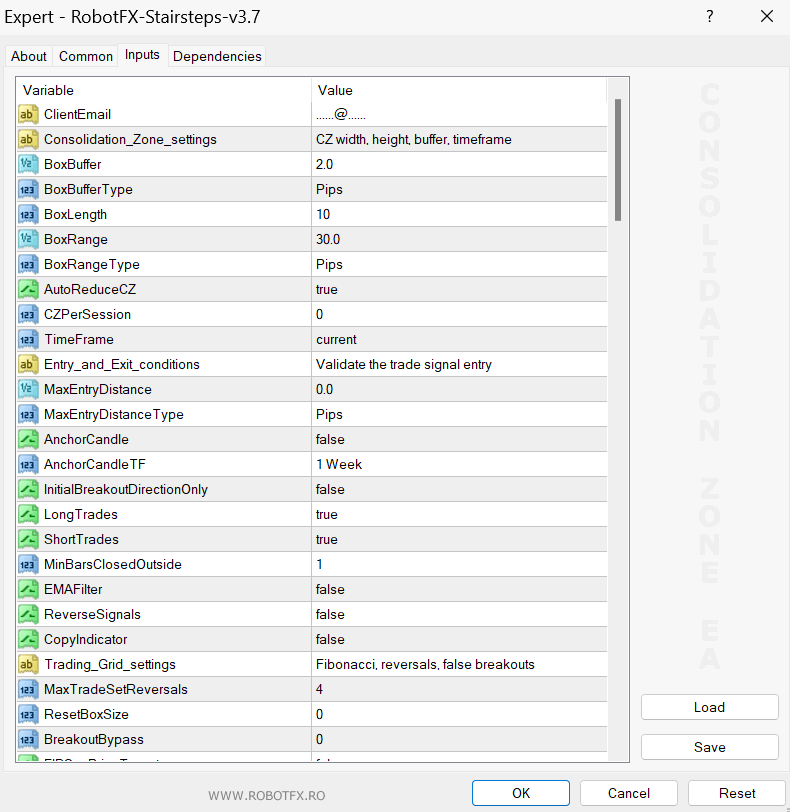
- BoxRangeType: Type of BoxRange.
- AutoReduceCZ: The consolidation zone is narrowed within its highest and lowest points. False means BoxRange defines its height.
- CZPerSession: Maximum number of consolidation zones during each session. If there are no trading sessions, it refers to the whole day. 0 disables this option.
- TimeFrame: The timeframe used for calculating the consolidation zones.
- MaxEntryDistance: Entry distance from breakout level should not exceed the defined value. 0 disables this option.
- MaxEntryDistanceType: Type of MaxEntryDistance.AnchorCandle: We set an anchor at the open price of the current candle. The first breakout trade should open above it for longs or below it for shorts.
- AnchorCandleTF: The timeframe of anchor candle.
- InitialBreakoutDirectionOnly: All trades of a consolidation zone should have the same direction as the first one.
- LongTrades: Long trades are allowed.
- ShortTrades: Short trades are allowed.
- MinBarsClosedOutside: 0 means an entry signal is valid when price exceeds the buffer zone, a value of 1 or greater defines the number of bars that should close beyond the buffer lines for a valid entry.
- EMAFilter: An entry is valid when real time moving average also reaches the level of the entry signal.
- ReverseSignals: Direction of entry signals is reversed.
- CopyIndicator: Trades are opened based only on signals from indicator. Take profit and stop loss are also copied from the indicator and are applied to bid. The indicator should be attached on a chart of the same timeframe and share the same MagicNumber.
- MaxTradeSetReversals: Maximum allowed trades of a trade set.
- ResetBoxSize: After a trade set is completed, if the defined number of bars lies within the extended consolidation zone, a new trade set is allowed to occur.
- BreakoutBypass: Number of breakout signals omitted before the breakout that triggers a trade.
- FIBSasPriceTarget: Take profit is defined by the nearest fibonacci level.
- FIB_TP: Fibonacci sequence ratios used to calculate the respective levels.
- MagicNumber: Magic number of the trade. If more than one chart of the same pair is opened the magic numbers should be different. Different pairs can have the same magic number.
- TradeComment: Comment of the trade as shown at the Metatrader terminal.
- QuickTakeProfit: Take profit of the first trade of a trade sequence. If ReverseSignals is true and QuickTakeProfit is 0, then the opposite border of the consolidation zone is used as take profit.
- QuickTakeProfitType: Type of QuickTakeProfit.
- ModifyTakeProfit: After the first trade of a tradeset the take profit value is modified so that it is no less than the greatest stop loss value among all trades of this tradeset.
- StopLossOverride: The stop loss value in pips. If ReverseSignals is false and StopLossOverride is 0, then the opposite border of the consolidation zone is used as stop loss.
- StopLossOverrideType: Type of StopLossOverride.
- BreakEvenTrigger: The stop loss moves to the entry price after price is in profit for the defined value.
- BreakEvenTriggerType: Type of break even trigger.
- LockProfit: The stop loss moves to the entry price plus the defined value after price reaches BreakEvenTrigger level.
- LockProfitType: Type of LockProfit.
- TrailingStart: Trailing stop is activated when price goes above the entry price for longs or below the entry price for shorts, for the defined value.
- TrailingStartType: Type of TrailingStart.
- TrailingStop: Value of trailing stop loss. Stop loss is continuously modified so that its distance from current price is always the defined value. 0 disables this option.
- TrailingStopType: Type of trailing stop loss.
- TrailingStep: The trailing stop loss is modified when price exceeds the level at which the previous trailing stop modification occurred, for the defined value.
- TrailingStepType: Type of TrailingStep.
- DynamicTrailingStop: The stop loss is constantly calculated as a percentage of the distance between current price and take profit. 0 disables this option.
- CloseProfitableAfterMinutes: At the defined minutes after its opening, a profitable trade is closed.
- CloseLosingAfterMinutes: At the defined minutes after its opening, an unprofitable trade is closed. Slippage: Maximum allowed slippage of trades.
- MaxSpread: No trades are opened when spread is greater than the defined pips. 0 disables this option.
- VisibleTP: Take profit visible to brokers used in case of disconnection. It is a multiplier of hidden take profit value.
- VisibleSL: Stop loss visible to brokers used in case of disconnection. It is a multiplier of hidden stop loss value.
- SendEmail: Disabled means no email, TradeOpening means an email is sent only when a trade is opened, TradeClosing means an email is sent only when a trade is closed, TradeOpeningOrClosing means an email is sent in both cases.
- SendNotifications: Disabled means no push notification, TradeOpening means a notification is sent only when a trade is opened, TradeClosing means a notification is sent only when a trade is closed, TradeOpeningOrClosing means a notification is sent in both cases.
- Alerts: Disabled means no alerts, TradeOpening means alerts only when a trade is opened, TradeClosing means alerts only when a trade is closed, TradeOpeningOrClosing means alerts in both cases.
- AlertSound: Play the defined sound file with an alert. The sound file should be placed in the sounds directory of Metatrader. Set it to blank for no sound.
- ScreenShots: Screenshots are saved in the files folder at the opening and closing of a trade. Disabled means no screenshots, TradeOpening means a screen shot is saved only when a trade is opened, TradeClosing means a screen shot is saved only when a trade is closed, TradeOpeningOrClosing means a screen shot is saved in both cases.
- LongColour: Arrow colour of long trades.
- ShortColour: Arrow colour of short trades.
- LabelFontColour: Colour of the labels that show information of the expert advisor.
All hour based settings are in hhmmhhmm format and refer to GMT. The first four digits define the start time and the last four digits the end time. Up to three trading sessions can be used. Set it to “00002400” to trade all day.
- AutoGMTOffset: Difference between server time and GMT, defined automatically by the EA. It can’t be used during backtests.
- ManualGMTOffset: Difference between server time and GMT, defined manually.
- DSTOffset: If ManualGMTOffset is used, Daylight Saving Time correction is automatically applied according to the European Union rules.
- TradingSession1: Trading hours restrictions for the first trading session.
- TradingSession2: Trading hours restrictions for the second trading session.
- TradingSession3: Trading hours restrictions for the third trading session.
- MondayOpenHour: For each week, new trades are only opened after this hour of Monday. It is in hhmm format. Set it to blank to disable this option.
- FridayCloseHour: Hour of Friday when all trades are closed and no new ones are opened to avoid the weekend gap. It is in hhmm format. Set it to blank to disable this option.
- FridayCloseTrades: At FridayCloseHour open trades are closed. None means no trades are closed, ProfitableTrades means only profitable trades are closed, LosingTrades means only losing trades are closed, AllTrades means all trades are closed.
- DailyCloseHour: Hour of each day when all trades are closed and no new ones are opened till the next day. It is in hhmm format. Set it to blank to disable this option.
- DailyCloseTrades: At DailyCloseHour open trades are closed. None means no trades are closed, ProfitableTrades means only profitable trades are closed, LosingTrades means only losing trades are closed, AllTrades means all trades are closed.
- TradingDays: Comma separated days of the week that allow trading.
- NewsFilter: No new trades are opened during news period.
- MinutesBeforeNews: The NewsFilter is active for the defined number of minutes before news.
- MinutesAfterNews: The NewsFilter is active for the defined number of minutes after news.
- Lots: The lot size if money management is not used.
- MoneyManagement: True means that the lot size is defined by the money management.
- EquityPercent: Lot size is a percent of account equity. 0 disables this option.
- StopLossRisk: Percent of account balance to risk for each trade, if it hits stop loss. 0 disables this option. Only one of EquityPercent or StopLossRisk can be used.
- CZResetMartingale: Martingale sequence resets when a new CZ is formed.
- Martingale: Percentage means a LotMultiplier percentage is added to the lot size after a loss, Multiplication means the lot size is multiplied by LotMultiplier after a loss. Martingale is activated only after the initial lots of a trade are closed at loss because of stop loss.
- StartMartingaleAfterSL: The martingale sequence starts after the defined number of consecutive unprofitable closed trades.
- LotMultiplier: Lot size increase factor in case of Martingale.
- MaxMartingaleSequence: The maximum number of consecutive martingale trades.
- IncludeHigh: Whether or not to consider the most important (red color) news.
- IncludeMedium: Whether or not to consider the medium importance (orange color) news.
- IncludeLow: Whether or not to consider the least important (yellow color) news.
- IncludeSpeaks: Whether or not to consider speeches (banks, FOMC etc) .
- ReportAllForUSD: Whether or not to consider all news about the USD dollar.
- ShowResetButton: The RESET button will clean the chart and restart the EA as it has just been attached to chart.
We have omitted to describe the self explanatory settings such as colors, fonts, sizes, indicators values.
How to Use StairSteps EA MT4
- Download and install the StairSteps Expert Advisor on your MetaTrader 4 platform.
- Attach the EA to your favorite major or minor forex pair on H1 or H4 timeframe.
- Configure consolidation zone parameters (BoxLength, BoxRange, BoxBuffer) and risk settings.
- Set up session filters, news filter, and Moving Average + ATR confirmation according to your strategy.
- Enable AutoTrading and let the EA automatically detect consolidation zones and trade breakouts.
- Monitor performance and optimize settings using the Strategy Tester for your preferred pairs.
Frequently Asked Questions
Q: Is the StairSteps EA only for MT4?
Yes, this expert advisor is built exclusively for MetaTrader 4.
Q: What is a consolidation zone and why is it important?
A consolidation zone is a period where price moves sideways between support and
resistance. Breakouts from these zones often produce strong directional moves,
which this EA is designed to capture.
Q: Does it trade only breakouts?
No. You can configure it to trade breakouts or to trade inside the consolidation
zone (range trading) depending on your preference.
Q: Can I use it during high-impact news?
Yes, but the built-in news filter allows you to completely avoid trading around
major news events to reduce risk.
Q: Is this EA suitable for beginners?
It is suitable for both beginners and advanced traders. The default settings are
solid, but we strongly recommend testing on a demo account first to understand
how it works on your pairs.
RobotFX StairSteps EA Video Tutorial
In this video, you will learn what consolidation zones are, how to identify them accurately, and how to trade breakouts profitably using the StairSteps Expert Advisor for MT4. It covers strategy logic, risk management, common mistakes to avoid, news filtering, optimal settings, and real trading examples. You will have to watch the rest of the videos too if you want to master this trading tool.